Create a value node
Value nodes are nodes used in simulation to perform computation. They can represent values or formulas of different kind:
- Point values:
42,-5.2 - Confidence intervals:
10 to 20,0 to 100 - Proportions:
3 of 10,7 in 100 - Percentages:
45%,0.1% - Functions:
=#sales_volume * #average_sale_amount,=$finance.CAGR(10000, 19500, 3) - Array of point values:
1,2,3,4,5,50 100 25 75 200
A simple estimation
For our first value node, we will estimate the number of glasses sold per day.
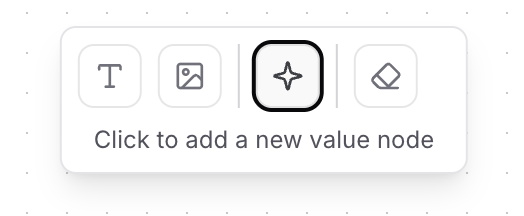
Click on the Value Node icon in the toolbar, then click where you want the node to be added in the workbench.
A modal dialog Edit Value Node will appear.
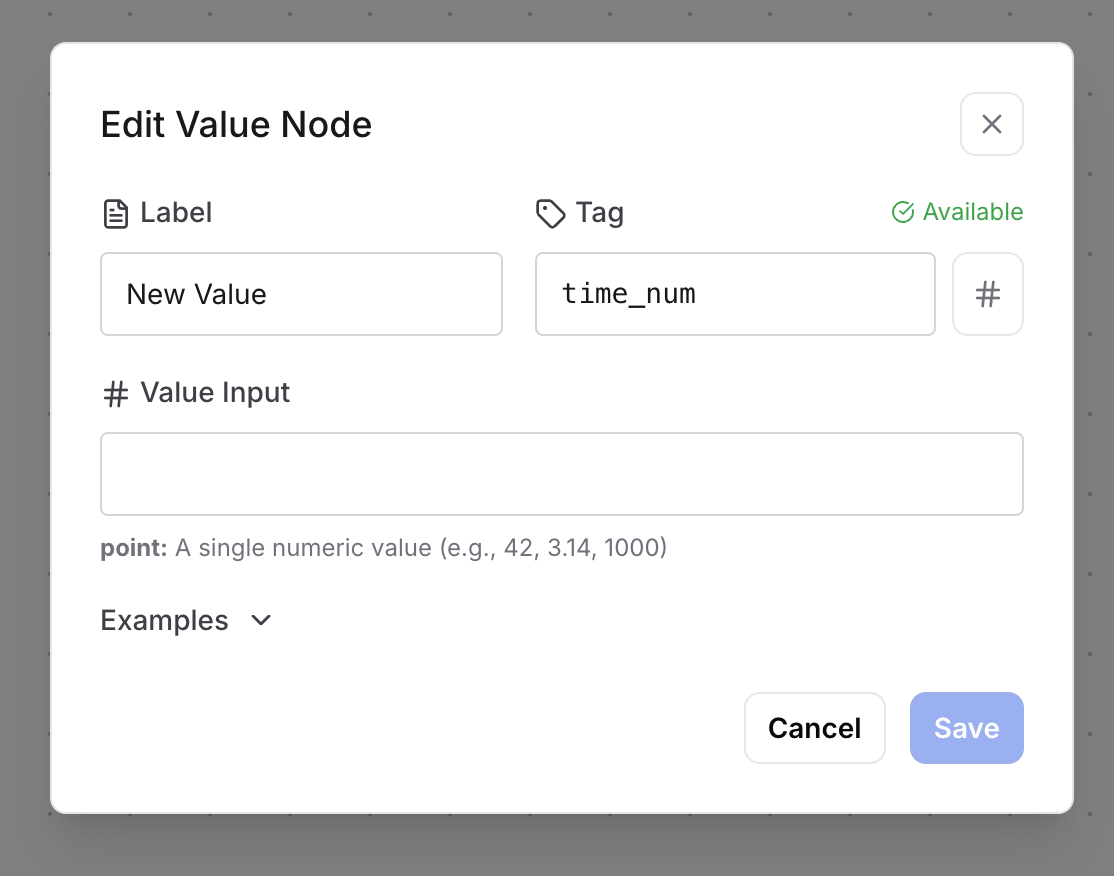
Enter the following values in the Edit Value Node form:
- Label →
Number of glasses sold per day - Tag →
glasses_sold_per_day - Value Input →
50
Click on Save to apply our changes.

Let's introduce uncertainty
Instead of a fixed number, let's model it as a confidence interval: between 30 and 70 glasses.
Double-click on the Number of glasses sold per day value node to edit the value input.
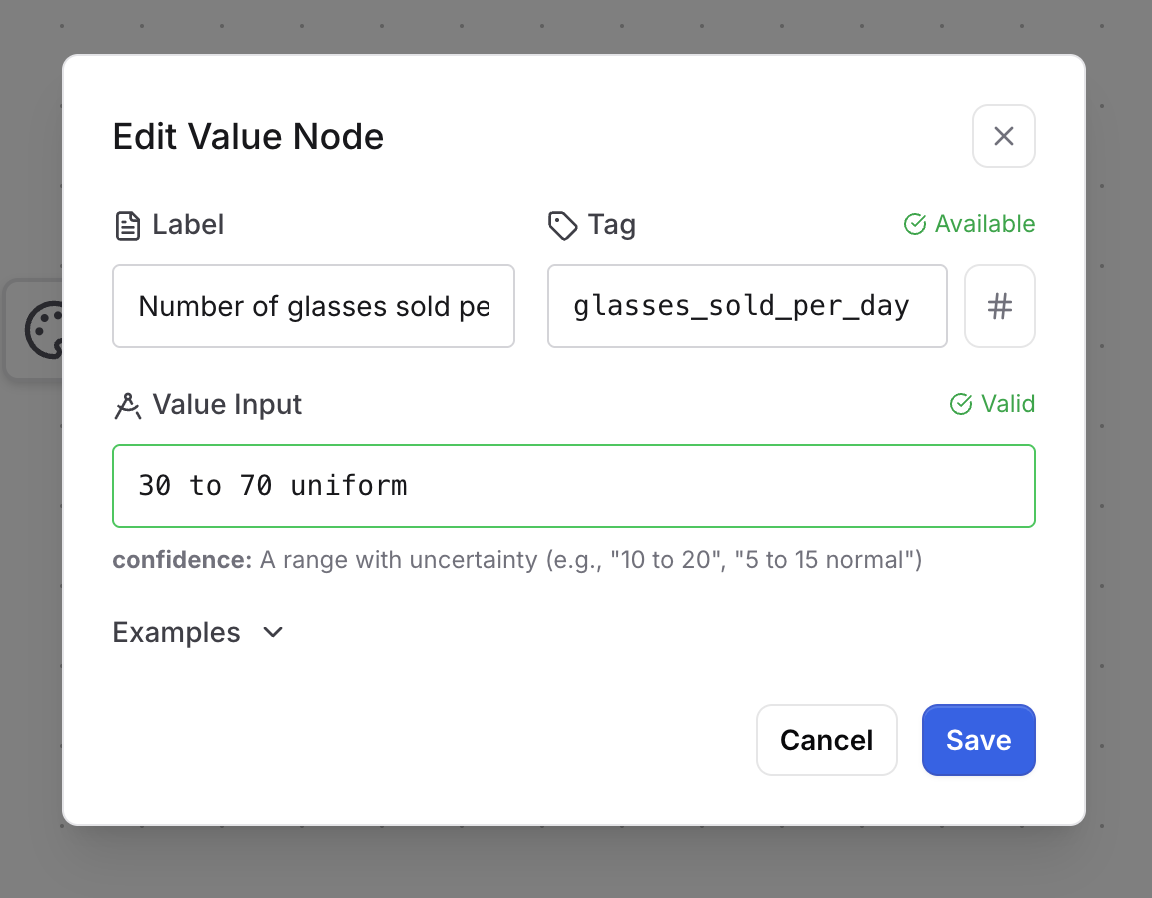
Enter the following values in the Edit Value Node form:
- Value Input →
30 to 70 uniform
Click on Save to apply our changes.
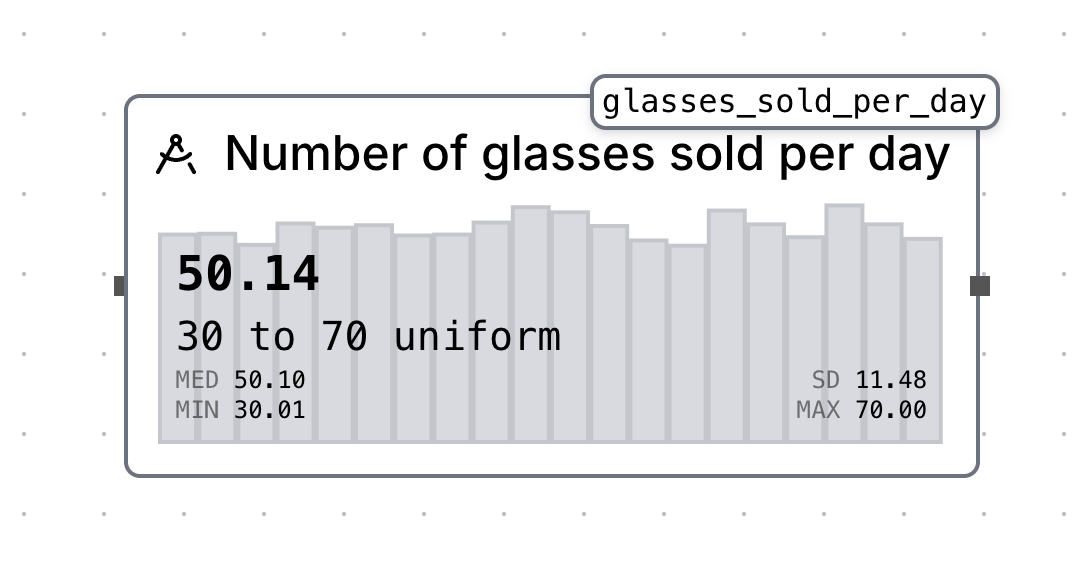
You will now see that the value node is displaying a chart, representing the distribution of our confidence interval.
By default, AleaX will generate 5000 iterations of our simulation.
You should be able to see the following statistics for our Number of glasses sold per day value node (your statistics will be a little bit different, every values are regenerated everytime!).
- MED (Median value): 50.10
- SD (Standard Deviation): 11.48
- MIN (Minimum value): 30.01
- MAX (Maximum value): 70.00
The average value will be the number in bold, 50.14 in this example.
Add a second value node
Let's add another value node to represent the price per glass.
Enter the following values in the Edit Value Node form:
- Label →
Price per glass - Tag →
glass_price - Value Input →
2.5
Click on Save to apply our changes.
